


Adobe Premiere: Video Editor
4.345.00 Reviews
App Specs
- Version
- 26.3.0
- Updated On
- License
- Free
- Downloads
- 1,000,000+
- Developer
- Adobe
- Categories
- Video Players & Editors
- Platform
- Android
Screenshots

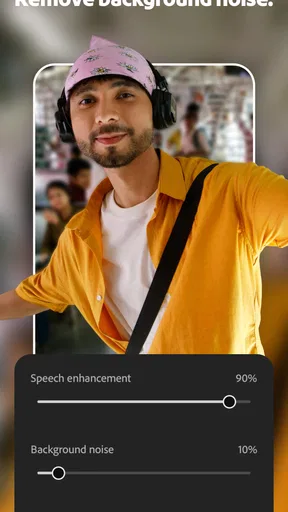
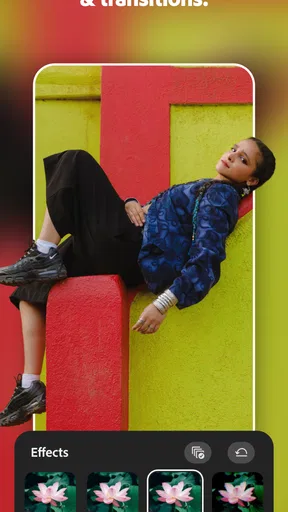
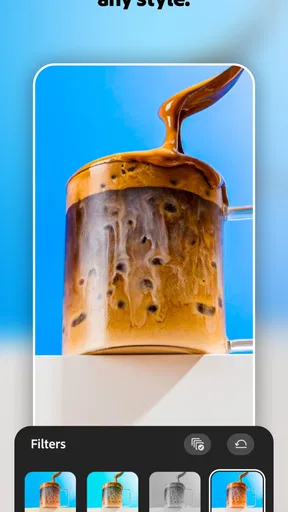
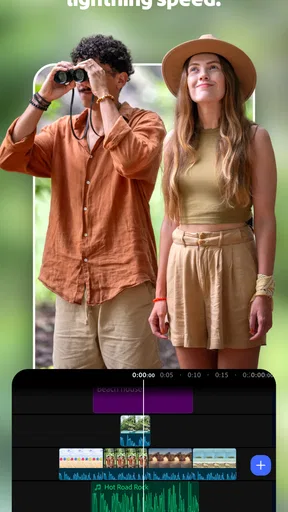


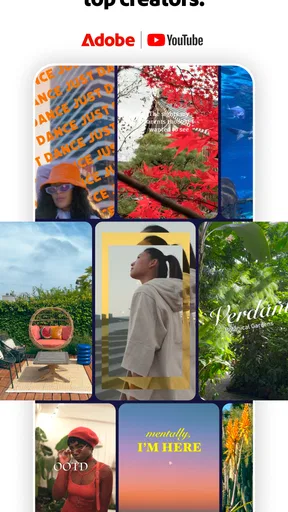
 Analysis by AppCompare
When I’m deciding whether a video editor deserves a place on my phone, I ask a practical question: will it help me finish the clips I actually make, or just tempt me to fiddle with them? Adobe Premiere: Video Editor is aimed at everyday edits, and its mix of timeline work, text, visual treatments, and audio tools gives it more range than a trim-only utility. I can see it becoming part of a regular routine for short videos, but it is not an automatic replacement for a desktop editor or a quick, bare-bones cutter.
Who will get the most from it
I’d recommend it most to someone who already records clips and wants to shape them with a little intention: a hobbyist making trip recaps, a small business owner explaining a product, or a parent assembling a short family update. It suits people who enjoy making choices about pacing and presentation, even if they are not experienced editors. If you mainly want an app to choose the best moments and build a finished video for you, a template-driven alternative may be less work.
A useful test is to think about the last few videos you took. If you can name a specific reason to edit them—cutting a long pause, adding a label, or making a sequence easier to follow—this app has a job to do. If your clips usually stay in the camera roll and you rarely share edited videos, its broader set of tools may not justify the extra steps. The free install makes it easy to try, but a tool is only useful if it fits a habit you already have or genuinely want to build.
Getting a satisfying result in the first week
As an app in the video editing category, Adobe Premiere brings together the parts most people reach for first: arranging video, adding text, choosing filters, and working with audio and sound effects. That makes it a sensible starting point for a short social post, a family recap, or a simple clip for a small business. Adobe is the developer, and the familiar Premiere name may appeal to people who already associate it with hands-on editing rather than automatic one-tap results.
In the first few sessions, I would focus on making one small finished video instead of exploring every control. Pick a clear beginning and ending, place the strongest shot early, then add only the text or sound that helps the story. A phone screen encourages constant tweaking, and it is easy to spend longer auditioning effects than improving the actual sequence. The useful skill here is restraint: a clean cut and readable caption often look more deliberate than several filters layered over every clip.
A practical first-week exercise is to make a short recap from footage already on the phone. Use a few contrasting moments, such as a wide establishing view followed by close details, and keep captions brief enough to read at a glance. If music is part of the edit, listen once with headphones and once through the phone speaker; a mix that sounds balanced in one setting may feel too busy in the other. That check is valuable even for a casual post and does not require advanced editing knowledge.
The app is free to install, which makes trying that workflow low-risk. Its average rating is 4.3 from around 6,700 ratings, and it has over 1 million installs. Those figures suggest it has found an audience, but they do not tell me whether its controls will suit a particular person. I would treat the first edit as a personal usability test: can you locate the basic tools, make a change without losing track of the sequence, and finish without turning a simple clip into a project?
Worth Reading Before You Choose

EA SPORTS FC Mobile 26 Is a Bigger Football Game, but It Takes Time

Flipboard Shows What News Apps Must Do Beyond the Feed

Switching to Android Auto Means Rethinking Your Driving Routine

Google Calendar Makes a Crowded Week Easier to Manage

Ludo King Makes the Most of the Minutes Between Plans

Baby Panda World Brings Quick Play to Modern Phones, but Its Game Library Feels Busy
Where it fits in a real routine
Imagine recording a school performance, a weekend walk, or a product demonstration. Later, you have several clips and want to send one coherent version to friends or customers. A mobile editor is useful here because the footage is already on the device, and you can make a presentable cut while the event is still fresh in your mind. Adobe Premiere is most compelling when the edit has a purpose—removing dead time, clarifying what viewers are seeing, or adding sound—not when you are simply trying every effect available.
For a person who posts occasionally, the best workflow is to decide the format and audience before editing. A private family recap can tolerate a slower pace and personal captions; a quick public update benefits from getting to the point immediately. I would also keep an untouched copy of important original footage before making a series of edits. That habit protects the source material if you later change your mind about the order or style, and it makes experimentation less stressful.
For example, after a weekend market visit, I might pick one wide shot to establish the place, then a couple of close details and a brief closing clip. I would add a caption only where it supplies context a viewer would otherwise miss, such as the name of a stall or what a demonstration shows. That keeps the edit useful to someone who was not there without turning it into a narrated report. The same approach works for a family event: a few moments with a clear beginning and end can carry more feeling than a long sequence of similar shots.
What keeps it useful after the novelty
Month to month, recurring value comes from reducing the friction between recording and sharing. If you regularly make short clips, having video, text, filters, audio, and sound effects in one editing environment can save the mental overhead of jumping among separate tools. The advantage is not that every edit becomes sophisticated; it is that a familiar routine can make everyday footage easier to shape into something watchable.
That convenience matters most for repeatable formats. A shop owner might prepare brief demonstrations, while a hobbyist could make occasional progress updates or trip recaps. In either case, settle on a simple pattern—opening shot, useful detail, closing moment—and vary the footage rather than rebuilding the whole approach each time. This is a practical way to keep edits consistent without making every post feel like a new design exercise.
One non-obvious editing habit I recommend is to separate selection from decoration. First decide which moments deserve to stay; only then add text, filters, or effects. On a small screen, visual treatments can make weak footage feel temporarily more exciting, but they do not fix a confusing sequence. Reviewing the cut once with all embellishments mentally ignored is a good test: if the story still makes sense, the finishing touches are probably helping rather than hiding a problem.
Another useful trade-off is to treat sound effects as punctuation, not a constant layer. A single effect can emphasize a transition or reveal, but frequent accents can make a personal clip feel noisy. The same principle applies to filters: choose a look that supports the footage, then check that skin tones and important details remain natural. These choices take a little discipline, but they help a phone edit look considered rather than overworked.
For repeat work, I would also settle on a small set of decisions before opening the editor: what the clip is for, which moments must stay, and whether it needs text or sound at all. That simple pre-edit plan limits aimless browsing and makes it easier to tell when the video is finished. It is especially useful when creating similar updates regularly, because consistency can come from a familiar structure rather than applying the same effect to everything.
Maintenance without turning editing into a chore
Every editing app asks for a small amount of upkeep from its user, even when the interface is approachable. I would avoid keeping a pile of half-finished experiments as a substitute for a clear workflow. Finish, export or share what you intended, and keep source clips organized in the way that already makes sense on your phone. The less time you spend hunting for the right footage, the more useful any editor becomes.
It also helps to review edits on the device and in the place where people are likely to watch them. Captions that seem readable while you are holding the phone close may be less comfortable at a normal viewing distance. A quick playback before sharing can catch a cut that feels abrupt, text that disappears too quickly, or audio that distracts from the image. This kind of quality check is more valuable than repeatedly changing the visual treatment.
The current version is 26.3.0. Version numbers alone do not tell me how a particular workflow will feel, so I would judge it by whether the editing steps I use regularly remain easy to repeat. If you rely on the app for a recurring project, give yourself a short test edit before committing a time-sensitive job to it. That is sensible with any mobile editor, especially when the finished video matters more than casual experimentation.
There is also a cost boundary to keep in mind. The app is free, while in-app purchases range from $7.99 to $69.99 per item. I would begin with the free experience and identify a specific limitation before paying for anything. If your regular edits are already possible without an upgrade, there is little reason to spend simply because a purchase is offered. If a paid item addresses a repeated obstacle in your own workflow, then its value is easier to judge against the time it saves.
For a casual creator, the practical question is whether the free workflow already covers the edits they make most often. I would not buy anything just to feel more committed to learning the app; I’d wait until a real project repeatedly runs into a specific barrier, then decide whether an available purchase solves it. That makes the decision about recurring usefulness rather than the excitement of unlocking more options.
Where fatigue can set in
The same collection of creative tools that makes a first edit enjoyable can become tiring when every clip invites another round of adjustments. Choosing text, audio, effects, and filters can turn a five-minute task into a long session of second-guessing. I would set a simple stopping rule: once the sequence is clear, the text is legible, and the sound is comfortable, make the final check and move on. That protects the app’s main advantage—editing close to the moment—rather than letting polish become its own project.
There is a broader limitation shared by phone-first editors: a touchscreen is convenient for quick decisions but less comfortable for detailed, repeated adjustments than a larger display. If you are assembling a long piece, managing a complex narrative, or making precise changes across many scenes, a desktop editor is usually the better fit. Likewise, if you only need to trim the start and end of a single clip, a simpler tool may be faster than opening a full editing app.
Adobe Premiere is also not the right choice for someone who wants the app to make every creative decision automatically. Its appeal is the ability to shape a video with edits and finishing touches, which means the user still has to choose what matters. If you dislike selecting shots, judging pacing, or deciding whether a caption belongs, an automated template-based alternative may feel more relaxing. Conversely, people who care about those decisions may find a basic one-tap maker too limiting.
In practice, the choice between this and a simpler editor comes down to how much authorship you want. A basic cutter is a better fit when speed matters more than presentation and the clip needs little beyond a trim. Adobe’s broader editing approach makes more sense when a sequence benefits from deliberate pacing, a caption, or a considered sound choice. If you often find yourself wishing a quick editor offered more control, that extra room can be worthwhile; if you resent each added decision, it may feel like overhead.
The Teen content rating is worth noting for families considering the app on a younger user’s device. It is an editing tool rather than a reason to assume every finished video is suitable for every audience; the subject matter, captions, and audio choices still depend on the person making the edit. For shared family use, I would agree in advance on where videos will be posted and who should be able to see them.
Does it deserve a lasting place?
My long-term verdict is conditional but positive. Adobe Premiere: Video Editor is worth keeping if you routinely turn phone footage into short, edited videos and appreciate having text, visual treatments, and sound tools together. It is less compelling as an app you open once for novelty and then leave untouched, because its strongest value comes from building a repeatable habit around real footage and clear communication.
Compared with a basic trimming app, it gives you more room to shape the mood and meaning of a clip. Compared with a full desktop editor, it favors immediacy over the comfort and precision of a larger workspace. That middle ground is exactly why I would recommend it to a casual creator who wants more control than a simple cut, but not to someone planning elaborate, long-form edits on a phone.
At its best, the app makes a useful everyday task feel manageable: choose the moments, arrange them, add only what improves understanding, and share a finished piece. At its most frustrating, it can encourage unnecessary polishing or feel cramped when a project outgrows a small screen. I would install it for recurring short-form work, begin without paying, and let a few ordinary projects—not the excitement of a new editor—decide whether it has earned permanent space on my phone.
Pros
- Offers a familiar Adobe workflow for users of other Creative Cloud apps.
- Supports editing portrait
- landscape
- and square video formats.
- Includes tools for adjusting clip speed and creating smooth transitions.
- Lets you add text and graphics to give videos a more polished look.
- Useful for assembling short social media videos on a mobile device.
Cons
- Some advanced features may require a paid plan.
- Editing on a small screen can feel cramped for detailed projects.
- Export times can be lengthy for high-resolution or complex videos.
- Large projects may use substantial storage and device resources.
- Cloud-based workflows may require a reliable internet connection.
FAQs for Adobe Premiere: Video Editor
What is Adobe Premiere: Video Editor?
Adobe Premiere: Video Editor is a mobile video-editing app for creating and refining clips on a phone or tablet. It is designed to help you arrange footage, make edits, and prepare videos for sharing, with available tools and features depending on the app version and device. Check the current store listing to confirm which editing options are included before downloading.
Is Adobe Premiere: Video Editor free to download and use?
The app’s price and access to editing features can vary by platform, region, and version. Some tools may be available without payment, while other features or services may require a subscription or in-app purchase. Review the App Store or Google Play listing for the latest pricing, trial terms, and purchase details, and check whether any subscription renews automatically.
Can I use Adobe Premiere: Video Editor without an internet connection?
Some editing work may be possible offline once the app and your video files are available on the device, but internet access may be needed for downloads, cloud-based features, account sign-in, syncing, or sharing. Offline support can differ between features and versions. If you expect to edit while traveling, test the tools you need before you lose connectivity and keep source footage stored locally.
Does Adobe Premiere: Video Editor add a watermark to exported videos?
Watermark behavior can depend on the app version, the export settings, and whether particular features require a paid plan. Do not assume that every project will export watermark-free: check the current app description and inspect the export screen before finishing important work. If a watermark appears in a sample export, review the app’s plan details to learn whether it can be removed.
What should I check before downloading Adobe Premiere: Video Editor?
Confirm that the app is compatible with your Android or iOS device and that you have enough storage for the app, imported footage, and exported videos. Video editing can use substantial memory and battery, especially with large or high-resolution clips. Also review the developer name, permissions, privacy information, supported file formats, and recent user feedback in the official app store before installing.


